A New Way to Create Crops
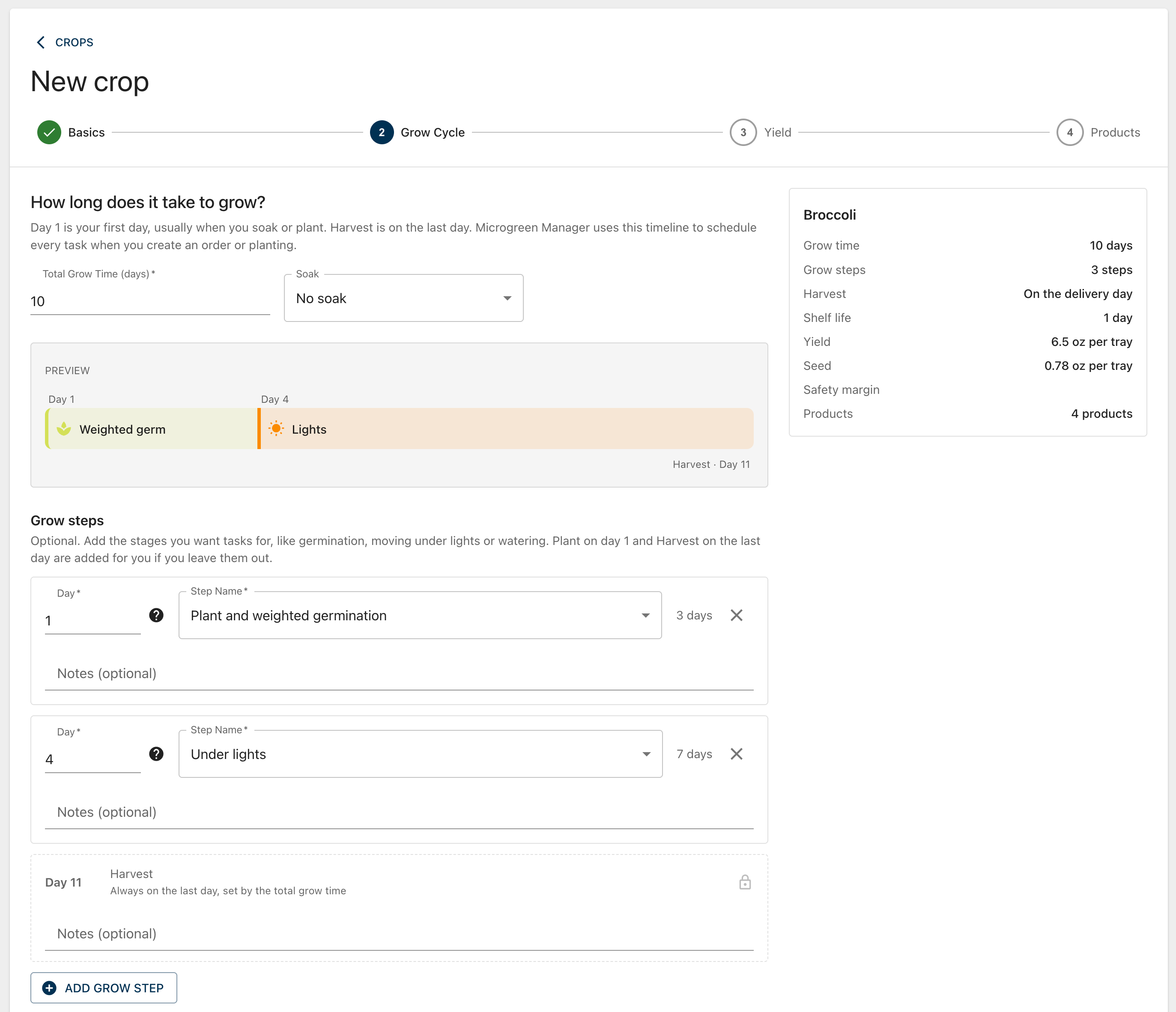
Creating a crop now opens a full page instead of a dialog. It walks you through four steps: Basics, Grow Cycle, Yield, and Products. A summary next to the form keeps everything you've entered in view. If you try to leave with unsaved changes, you'll get a warning first.
Start from a common crop: Pick a common crop to fill in the form, then change whatever you need. If you clone a crop, the form starts with that crop's details instead, so the picker is hidden.
Soak made simple: Choose No soak, Same day as planting, or Overnight, and the soak step follows your Plant step automatically. If an existing crop's soak doesn't match any of these, it shows as Custom with a note explaining why.
See it before you save: The Grow Cycle step shows your timeline as you build it. The Grow Cycle and Yield steps each end with a worked example that shows when you'd need to plant for a delivery and how many trays an order needs.
Grow days start at Day 1: Steps, timelines, and the crop page now count grow days from Day 1 instead of Day 0. Your existing crops and tasks are not changed. Only the numbering you see is different.
Steps stay in order: When you change a step's day, it moves into place in the list.
Edit Grow Time and Steps has its own page: It works like the Grow Cycle step and shows the same timeline and example delivery.
Heads up for CSV imports: The crop CSV now counts Step Start Day from 1 too. If you re-import a crop CSV you exported before this update, add 1 to each Step Start Day first.